
Remini vs PicsArt: A Hands‑On Look at What Actually Fixes Your Photos
You have a photo that matters—maybe a fuzzy shot of your grandparents, a selfie where your face looks like a smeared watercolor, or a product image that won’t sell because the label is unreadable. Remini vs PicsArt always comes up when you search for a fix, but most advice stops at feature lists. I’ve used both apps for everything from restoring 1960s film scans to building Instagram carousels for a friend’s candle shop, and the real differences only become clear when you push them past their marketing pages. This isn’t a spec sheet comparison. It’s a walk through the actual situations where one saves the photo and the other makes it shareable, complete with the ugly in‑between parts no screenshot‑based review shows you.
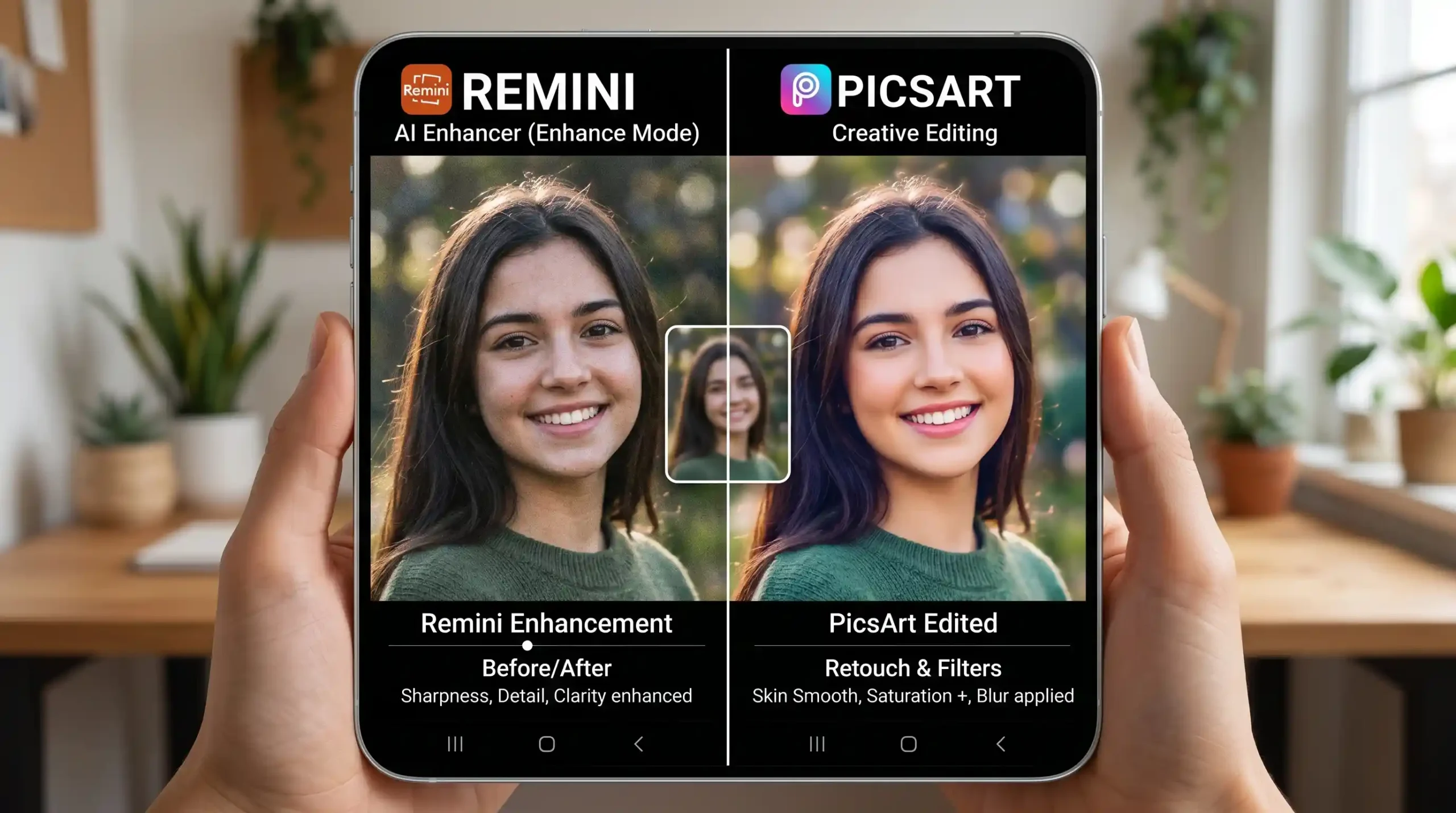
Where Remini Gets Freakishly Specific—and Where It Falls Flat
Remini’s AI face model is trained to reconstruct human features, and when it works, it’s almost eerie. I dropped a passport photo from 2007—so grainy the irises looked like mud—and the app gave me back eyelashes, catchlights, and individual brow hairs. The texture wasn’t over‑smoothed; pores stayed visible, which surprised me. For old portraits, low‑light selfies, or any shot where facial clarity is missing, this is the closest thing to a dedicated face‑restoration tool you’ll find on a phone.
That narrow focus is also the ceiling. When I tried to sharpen a landscape photo of Lake Louise taken on a foggy morning, Remini’s “Pro” model made the tree line look like brushed aluminum. Non‑face textures often turn waxy or gain a painterly smear that ruins the natural feel. Hair can morph into plastic ribbons if the shot is too soft, and extreme motion blur just yields an AI hallucination—some weird smooth mask that isn’t a photograph anymore. You can’t dial anything back, adjust warmth, or tone down the enhancement. It’s one intensity slider and an export button.
I learned to crop group shots down to individual faces before hitting enhance. In a family portrait with six people, Remini sharpened two beautifully and left the others with mismatched skin textures. Cropping each face, enhancing, and reassembling later gave me a far more consistent result. That extra step matters if you’re restoring a one‑of‑a‑kind photo.
PicsArt’s Side of the Table: A Studio That Happens to Include AI
PicsArt doesn’t focus on faces—it focuses on everything. You open it and land in a workspace with layers, effects, stickers, a solid text engine, and a surprisingly capable background remover. Its AI Enhance tool sits inside the “Tools” menu and works like a general upscaler: it boosts resolution and edge sharpness across the whole image equally. I ran the same 2007 passport shot through it and got a softer, dreamier result. The eyes were brighter, but the individual lash detail Remini pulled out was gone. For a painterly portrait this might actually be preferable; for an accurate restoration, it’s not.
Where PicsArt becomes the main tool is style building. Last month I needed a moody album‑cover look for a musician friend. I took a sharpened headshot (originally enhanced in Remini), brought it into PicsArt, layered a light‑leak texture, applied a teal‑orange color grade, and added a glitch effect on a duplicated layer set to 30% opacity. The final image looked custom‑built, not filtered. That sequence—precision enhancement first, creative styling second—became my default because no single app does both well.
PicsArt also handles design tasks Remini can’t touch. Collages, text overlays, product mockups, background removals—the app acts like a mobile mini‑suite. I recently used its cutout tool to isolate a handmade candle, dropped it on a pastel background, added a shop logo, and exported a product hero image that looked professional enough for an Etsy listing. All of that happened in one session without transferring files.
Six Common Photo Problems and Which App Actually Saves the Day
Most advice throws a giant feature list at you and calls it a comparison. I’d rather walk through the moments I’ve actually grabbed one app over the other.
Restoring a Faded 1980s Family Print
A scanned 4×6 with soft faces and color shifts demands Remini first. The face reconstruction brings back what’s missing—lip definition, eye sharpness, skin texture. The result always looks a little cold and clinical though, so I immediately open the export in PicsArt to warm up the color temperature, add a subtle grain that matches the original paper, and apply a slight vignette. The final photo feels restored, not digitally scrubbed.
Rescuing a Blurry Concert Photo
Crowd shots with poor stage lighting rarely have clear facial detail. Remini tried and gave me a waxy guitarist face that looked AI‑generated. PicsArt’s AI Enhance couldn’t fix it either. What actually worked: I leaned into the blur by using PicsArt’s motion blur and dispersion effects to turn the whole image into an intentional artistic poster. Problem solved not by enhancing, but by styling around the flaw.
Sharpening a LinkedIn Headshot from a Webcam Screenshot
A friend had one screenshot from a Zoom call and needed a profile picture that didn’t scream “video grab.” Remini enhanced the face—crisp eyes, clean skin texture, no plastic feel. Then I moved into PicsArt and used curves to lift shadows that flattened her face, applied a mild skin smoothing just on the forehead (the Beautify brush), and exported. The result looked like a deliberate headshot. I’ve repeated this exact two‑app flow for three different people now.
Building Instagram Graphics with Before/After Edits
When I posted side‑by‑side restoration examples for a client, PicsArt handled the collage grid natively. No other app needed. I placed the original on the left, Remini’s output on the right, added a text caption, and used the “Remove BG” trick to give the comparison a floating‑card look. Remini played no role in the graphic itself, only the source images.
Preparing Product Photos for a Small Candle Shop
The candle label text was mushy in the phone photo. Remini’s general enhancer (Pro mode, no face) sharpened the typography and wood grain convincingly. I then cut out the candle in PicsArt, placed it on a clean background, and added a soft drop shadow. That workflow produced a catalog‑style image in under ten minutes, something neither app alone could do.
Handling a Mixed‑Lighting Group Photo
Seven people, half in shadow, half washed out by window light. Remini unevenly sharpened a few faces and ignored others. I used PicsArt first to even out exposure with local brush adjustments, then cropped the soft faces individually, enhanced them in Remini, and brought everything back into PicsArt for a final color pass. It’s extra work, but the consistency makes the group photo look like it was taken in controlled light.
Speed, Friction, and When the Paywall Hits
Remini’s interface doesn’t ask you to think—pick a photo, wait 5–15 seconds, get a result. The free tier limits you to a small handful of enhancement cards per week, and once you burn through them restoring four or five photos, you’ll stare at a subscription screen. I hit that wall within two hours the first time I batch‑processed old family scans. The pricing is straightforward but sharp if you do bulk restoration.
PicsArt feels busier. The home screen opens to templates, challenges, and creation tools that can overwhelm a newcomer. After a weekend of poking around, though, the layers and adjustments become intuitive if you’ve used any desktop editor. The free, ad‑supported version keeps most editing tools accessible and stocks a decent selection of stickers and fonts; you pay to remove ads and unlock the premium asset library. For casual Instagram styling or quick touch‑ups, I used the free tier for months without major friction. Anyone who needs the AI Enhance tool frequently will find it faster than Remini’s credit‑gated approach.
The learning curve difference is real. My partner picked up Remini in seconds and restored old baby photos without a single question. PicsArt took her about three sessions before she felt comfortable navigating layers and export settings. If you only have one photo to fix and zero patience, Remini wins on sheer immediacy. If you’re willing to invest a little time learning, PicsArt becomes a tool you’ll reach for even when you don’t need AI enhancement.
A Combined Workflow That Keeps Your Edits Looking Natural
Stop treating Remini vs PicsArt as a zero‑sum choice. I’ve landed on a repeatable sequence that hasn’t let me down: Remini handles pixel‑level face rescue, PicsArt handles mood, tone, and layout. For a portrait, that means Remini first at max quality, then PicsArt for curves, gentle skin adjustments, maybe a subtle film grain that masks any leftover AI smoothness. For product shots, Remini sharpens the detail, PicsArt isolates the subject and builds the final composition.
One mistake I see people make is taking Remini’s output straight to social media without any post‑processing. The AI sometimes adds micro‑contrast that looks harsh on small screens. A quick brightness bump and a half‑stop of warmth in PicsArt make the same photo feel more natural and less “tech demo.” You don’t need a professional editing background to do this; just trust that the enhanced file is a raw starting point, not the finished image.
Conclusion
Remini does one thing obsessively well: it pulls faces out of blurry, low‑resolution hell with startling precision. PicsArt gives you a creative canvas where you can style, correct, and compose almost anything. The real value appears when you stop comparing them as rivals and treat them as two halves of a complete editing flow. Enhance first, style second, and you’ll end up with photos that look intentional—not just technically sharper, but genuinely better.